Second Studio

Role
Company: Second Studio
As VP of Product at Second Studio, I worked as a liaison at the intersection between our users and technology, designers and engineers.
I love the challenge of solving unusual and unfamiliar issues, and VR offers plenty of those. But the potential of the field is undeniable and it offers the perfect opportunity to bridge my fascinations with people, innovation, usability, creativity, and social impact.
My responsibilities included:
- Developing an enterprise SaaS product for the emerging VR industry
- Scripted collaboration methods inside complex multi-user ecosystem
- Prototyped interaction designs, sculpting tools & UI elements in Unity
One session, three roles — live
This video shows a single Second Studio session running live across two locations in Los Angeles and viewed from three machines in my home.
The Windows desktop on the left is a Controller, with full creative rights, collaborating in real time with a second Controller signed in from our Second Studio office. The MacBook in the foreground and the iMac on the right are Passive Observers: each watches the same shared session from its own fixed viewpoint — one top-down, one from an elevated three-quarter angle.
There is an Active Observer in the session as well as the 5th participant: see the stationary spherical “head” towards the center of the scene on the top-right monitor? This is another HTC Vive headset placed on a table. That user has the ability to move around only, without being able manipulate the data.
Same session, same data, five participants, three authorization levels.
That distinction — who may act, who may watch, and from where — is the core of the multiuser roles and permissions framework I authored for Second Studio in 2017, before commercial VR collaboration tools shipped equivalent role models.
The full framework, including the “active observer” middle role most tools still lack, is published as a white paper: VR Ecosystem and User Scenarios (2017).
Sculpting Toolset [diagram]
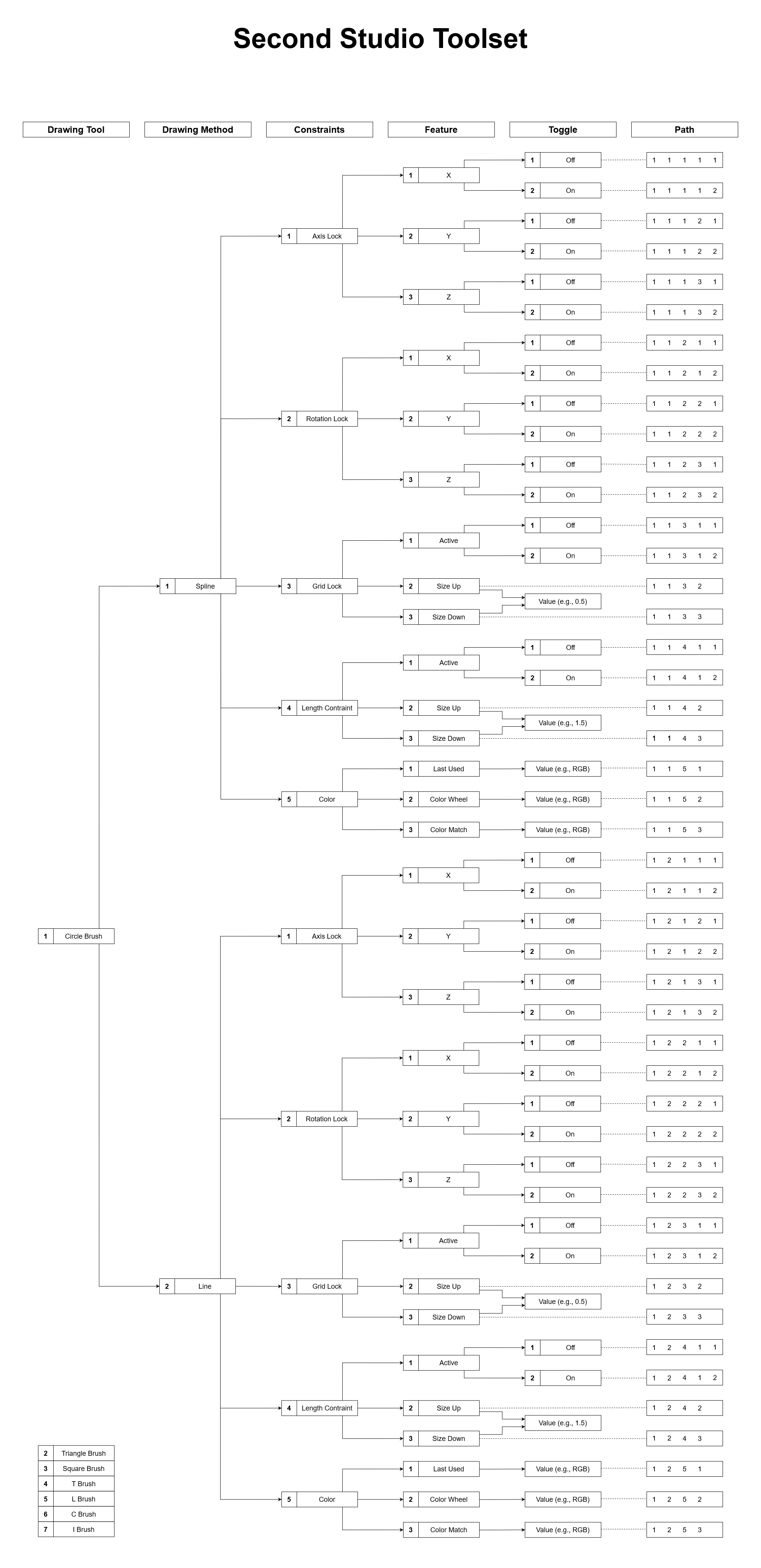
One of my responsibilities at Second Studio was mapping out the different sculpting and manipulation tools we wanted to include in the creators tool palette. The included diagram illustrates all the available configuration options for a single drawing tool: circle shape. These include: spline vs line and constraints for axis, rotation, grid, and length.
Aside from creating an overview of the tool settings available inside the app, and how they relate to one another, the diagram was also used to map out the path leading to each setting (e.g., 11312 = drawing with circle shape in spline format with the environment Grid turned OFF). This was helpful so that tool settings could be easily stored, analyzed, or replicated.
Our app also included a concept for tool hand-off, so collaborators could easily pass their current or preferred tools one to another. In that case, all settings would be automatically copied over and applied.
Workflow Mockup [video]
After mapping out the tool options, I went into Unity to demonstrate a concept workflow for tool selection and parameter control. In this mockup, I physically move forward between steps, but the idea was to update the UI placed in front of the user automatically, so they can go through the set-up steps with just a few simple taps or swipes.
- Select the preferred tool: in this case Spline.
- Select the drawing tip: in this case Triangle.
- Set axis restrictions, if any, and control the drawing scale.